HIRE
From requisition to signed offer. One flow.
Create and approve job requisitions in Microsoft Dynamics 365 Business Central, publish approved roles to your careers page and move every candidate through one connected pipeline.
- Built for Business Central
- One employee record
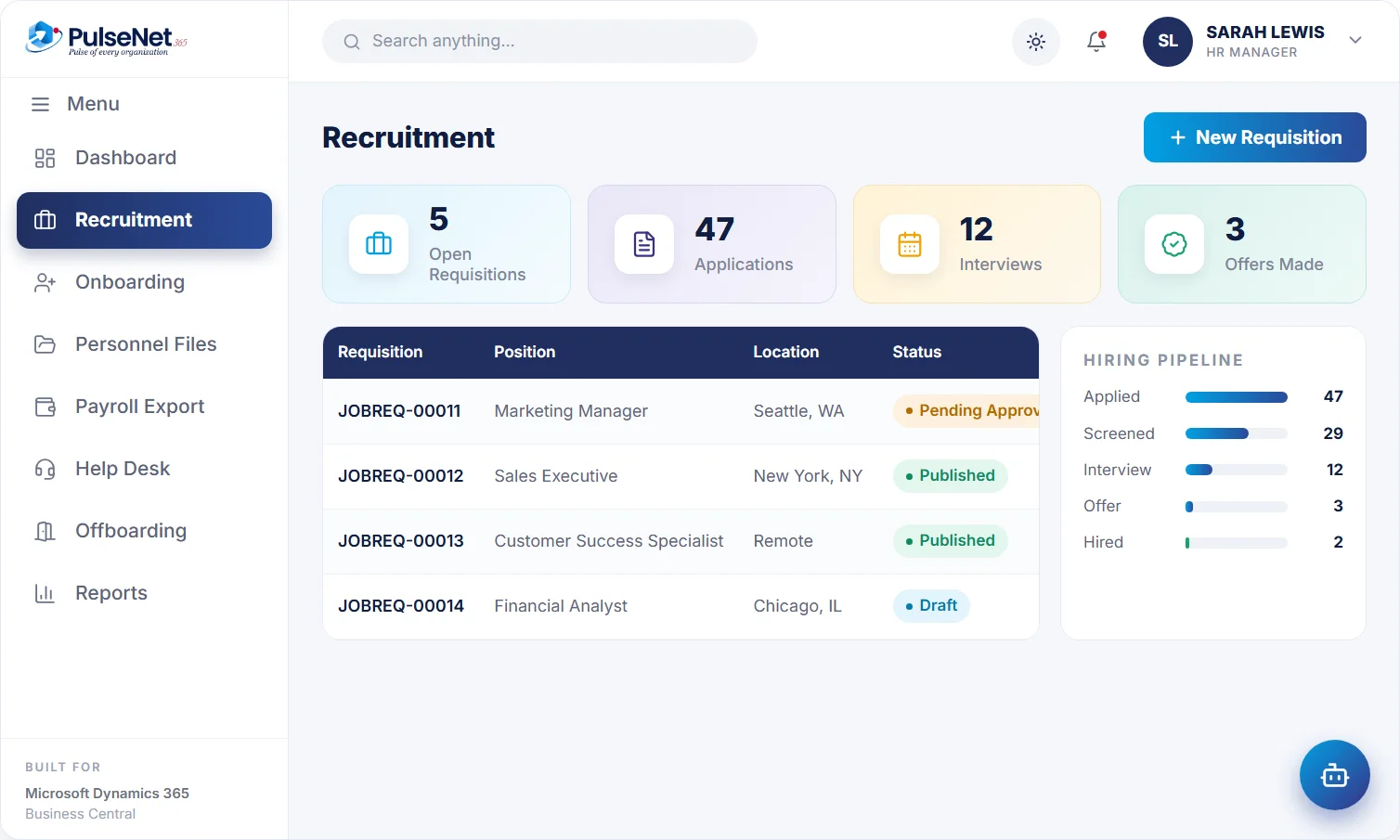
Job requisitions and pipeline. Illustrative screen with sample data.
Requisition approved
Financial Analyst · Chicago
47 applicants
across 5 open roles
Offer signed
moved to onboarding
THE PROBLEM
Where hiring loses good candidates
Most hiring delays are not caused by a shortage of applicants. They come from the gaps between steps. A requisition waits for a budget holder who is travelling. CVs arrive in three inboxes and one gets missed. A panel meets on Tuesday and two members still owe feedback on Friday. Each gap costs days, and the strongest candidates usually have other offers.
The second cost comes after the offer is signed. Someone in HR copies the new starter’s name, start date, salary and job title into the employee record, then again into a payroll spreadsheet. Each copy is a chance for a typo that only surfaces in the first pay run.

WHAT GOES WRONG TODAY
- Requisitions approved by email, with no record of who agreed the budget.
- Applications scattered across inboxes, job boards and a shared spreadsheet.
- Panel feedback that arrives late, or only as a verbal thumbs up in the corridor.
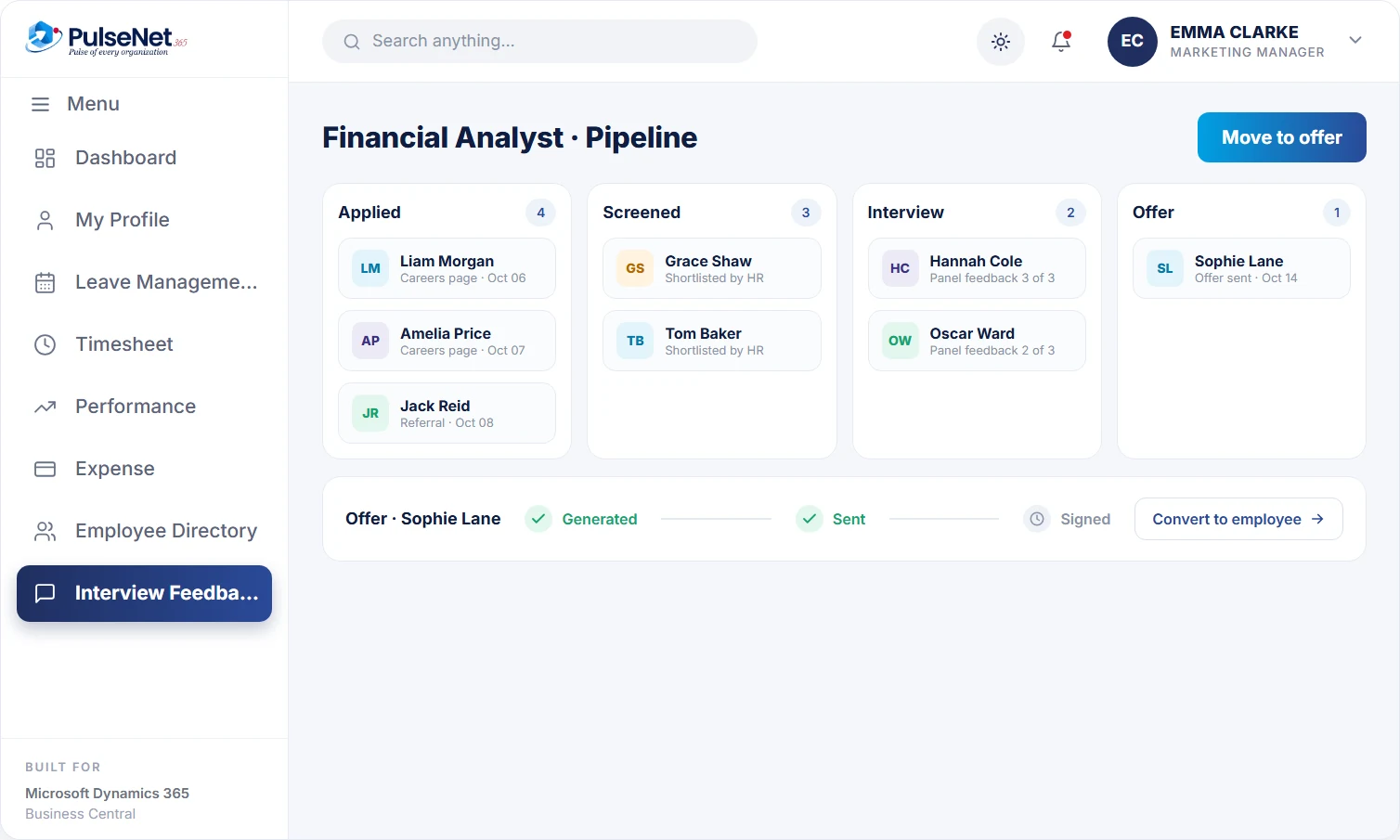
Candidate pipeline and offer tracking. Illustrative screen with sample data.
WHAT IT DOES
Built for the way recruitment actually runs.
- Job requisitions created and tracked in Business Central
- Approvals run through your Business Central workflow
- Approved roles published to your external careers site
- Every applicant tracked by stage, from applied to hired
- The hired candidate becomes an employee record, with no re-entry
01
Raise the requisition
Position, department, hiring manager and budget, captured once.
02
Approve in workflow
Requisitions route for approval with a clear owner and trail.
03
Publish and collect
Approved jobs go live on your careers page.
04
Offer and convert
The new hire moves straight into onboarding.
IN DETAIL
How a role moves from request to hire
Every stage has an owner and a status, so anyone with access can see where a vacancy stands without asking HR.
Requisitions with a budget owner
The hiring manager raises the role with title, department, skills, experience and budget. It routes through your Business Central approval workflow, and the approver accepts or rejects with a reason that stays on the requisition. HR is notified when a decision is made, so nobody has to ask whether the role is live or who agreed the budget.
Careers page, applications and screening
Once a role is approved, HR publishes it to your careers page. Each application becomes a candidate record automatically, with the CV attached. HR screens against the requisition, adds remarks and moves each candidate to shortlisted or rejected. Rejected candidates receive a rejection email, so nobody is left waiting for an answer that never comes.
Interview panels that report back
Shortlisted candidates are given an interview panel and interview dates. Panel members are notified with the details, and reminders go out until each person has submitted feedback. The hiring manager decides with every written evaluation in view, rather than a summary pieced together from memory in the corridor, and the evaluations stay against the candidate.
From signed offer to employee
HR generates the offer or agreement from the candidate record and tracks it as generated, sent and signed. Once signed, the candidate is converted into an employee record that carries the details already captured, and onboarding can start from there. Nobody retypes the start date, job title or department, so the data payroll later receives matches what was agreed.
WHO IT HELPS
What changes for each person in the hiring process
New hires
The details a candidate gave during hiring become their employee record, so they are not asked for them again. They get a clear decision at each stage, including a polite rejection if the answer is no, and onboarding begins from the signed offer.
Hiring managers
Raise the requisition once, see its approval status, and receive panel feedback in one place instead of chasing colleagues. They can see who is shortlisted, who is interviewing whom and which offers are out, so the weekly hiring catch-up with HR stays short.
HR
Publishes approved roles, screens applications, runs panels and tracks offers from one pipeline. Every decision carries a name and a date, which helps when a candidate asks for feedback. Converting the hire removes the copying step between recruitment and the personnel file.
Finance
Requisitions carry a budget and an approval record, so finance can see which roles were agreed, and by whom, before an offer goes out. The new employee is created on Business Central, so cost reporting by department works from day one.
ON BUSINESS CENTRAL
Where Business Central stops and recruitment begins
Business Central has no recruitment process of its own. It holds employees once they exist, and it provides the approval workflow engine and the dimensions finance already uses for departments and cost centres. PulseNet365 adds everything that happens before the employee record. When a candidate signs, the employee is created in Business Central, ready for finance and payroll data.
Business Central provides
- Employee card with personal, contact and employment details
- A workflow engine for approvals, configured by your administrator
- Dimensions for department and cost centre reporting
PulseNet365 adds
+
Job requisitions with budget, skills and an approval trail
+
Careers page publishing and automatic application records
+
Screening remarks, interview panels and feedback reminders
+
Offer tracking and conversion of the candidate into an employee
GOOD PRACTICE
Hiring habits worth adopting whatever system you use
Write the scorecard first
Agree three to five things the role must do well before the requisition is approved, and share them with the panel. Interviewers who assess against the same criteria give feedback you can compare, and the loudest voice in the debrief no longer decides the outcome.
Set a panel feedback deadline
Ask every panel member to submit written feedback within one working day of the interview, and before the debrief. Feedback written after hearing colleagues tends to drift towards their view. A short deadline also stops strong candidates waiting while the panel catches up.
Close the loop with everyone
Tell every applicant where they stand, including a clear no. Candidates talk to each other and sometimes to your customers, and silence is remembered longer than a polite rejection. Send rejections at least weekly so nobody waits long after a decision has been made.
QUESTIONS
Recruitment questions, answered.
Who approves a job requisition?
Whoever your Business Central approval workflow names for that request, typically the hiring manager’s own manager or a budget holder. The approver accepts or rejects with a reason, HR is notified, and the decision stays on the requisition. Rules that differ by department or grade are set in the workflow during configuration.
Does PulseNet365 score or rank CVs automatically?
Screening in PulseNet365 is done by people: HR reviews each application, records remarks and shortlists or rejects. If AI-assisted screening matters to you, raise it when you book a demo and we will show you what is available for your setup.
What happens to candidate data when someone is hired?
The candidate is converted into an employee record carrying the details already captured, such as name, contact details, job title, department and start date. Onboarding starts from that record. Candidates who are not hired stay against their requisition, and you should agree with your data protection adviser how long to keep them.
How are interview panels reminded to give feedback?
When a shortlisted candidate is given a panel and interview dates, each panel member is notified with the details. Reminders go out to anyone who has not yet submitted feedback, and HR can see whose evaluation is outstanding.
Do we need Onboarding as well as Recruitment?
No. Each module can be switched on separately, and most organisations start with two or three. Recruitment ends with an employee record on Business Central. If you add Onboarding, the checklist starts from that record once the offer is signed.
WORKS WITH
Connected modules.
Every module shares the same employee record on Business Central, so adding another one adds no integration work.
Onboarding
A first 30 days that runs itself.
Digital Personnel File
One 360° record per employee.
Self-Service
Everything employees and managers need.
+
+
+
+
Thirty minutes is enough to know if this fits.
Bring your Business Central setup and the process that costs you the most time. We will show you Recruitment on the platform you already run.