REWARD · NEW
Payroll-ready data, no re-keying.
Compensation and benefits, approved hours, leave and expenses brought together on one employee record, and handed to your payroll provider through payroll integration.
- Built for Business Central
- One employee record
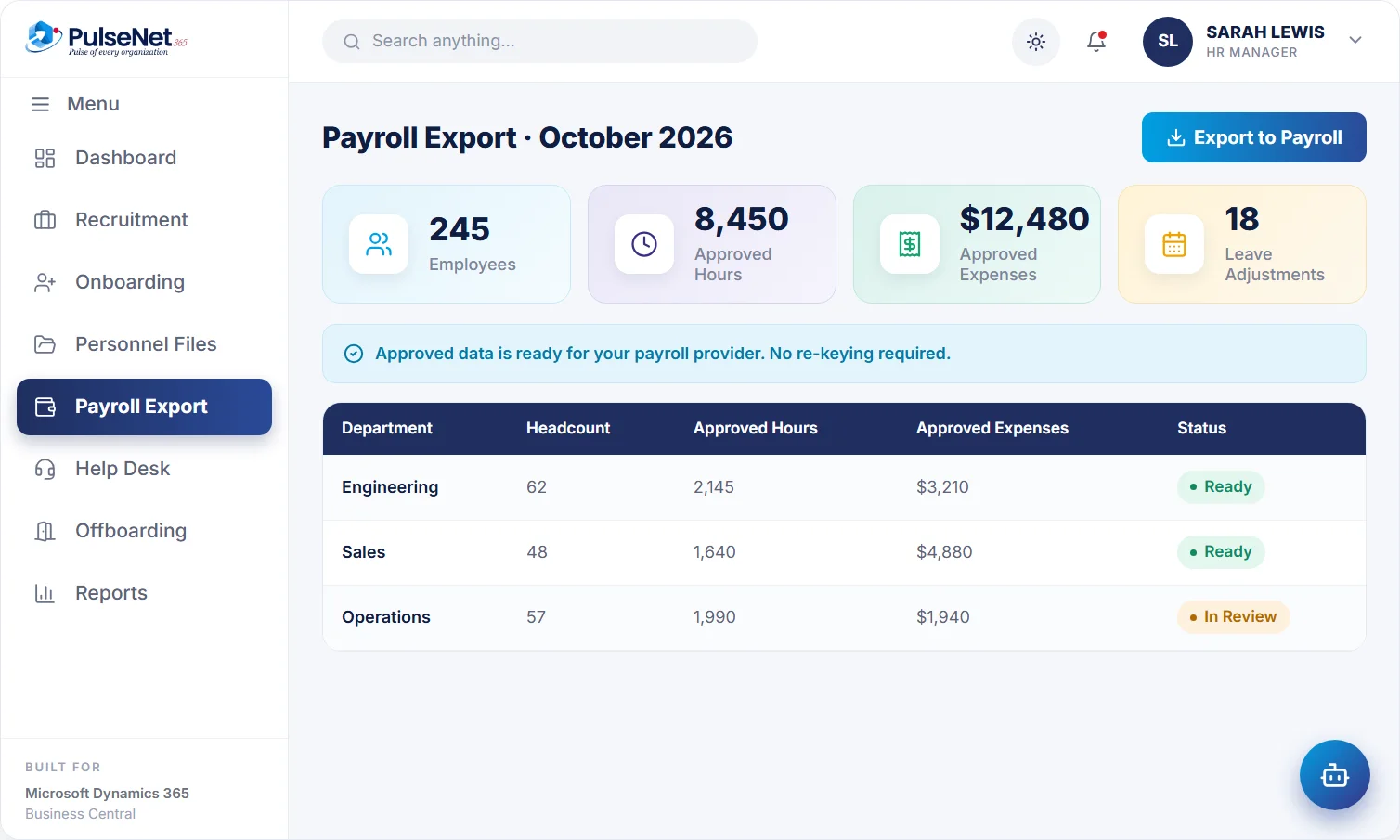
Payroll export. Illustrative screen with sample data.
Period approved
October 2026
Export ready
245 employees
Handed to provider
no re-keying
THE PROBLEM
Most payroll errors start before the payroll run
Payroll gets blamed for wrong payslips, but the calculation is rarely the problem. The errors start upstream: timesheets approved after the cut-off, a sick day noted in a spreadsheet but never in the system, an expense approved by email and missed, a pay rise agreed in March and entered in May. Each one is an HR data problem that surfaces as a payroll problem.
The usual fix is a last-week scramble: exports from three tools, a reconciliation spreadsheet and a string of emails asking whether a number is right. It works, just about, and it depends on one person who knows where everything lives.

WHAT GOES WRONG TODAY
- Hours, leave and expenses arrive from different tools in different formats
- Compensation changes reach payroll late, or not at all
- Nobody can say which figures were approved, or by whom
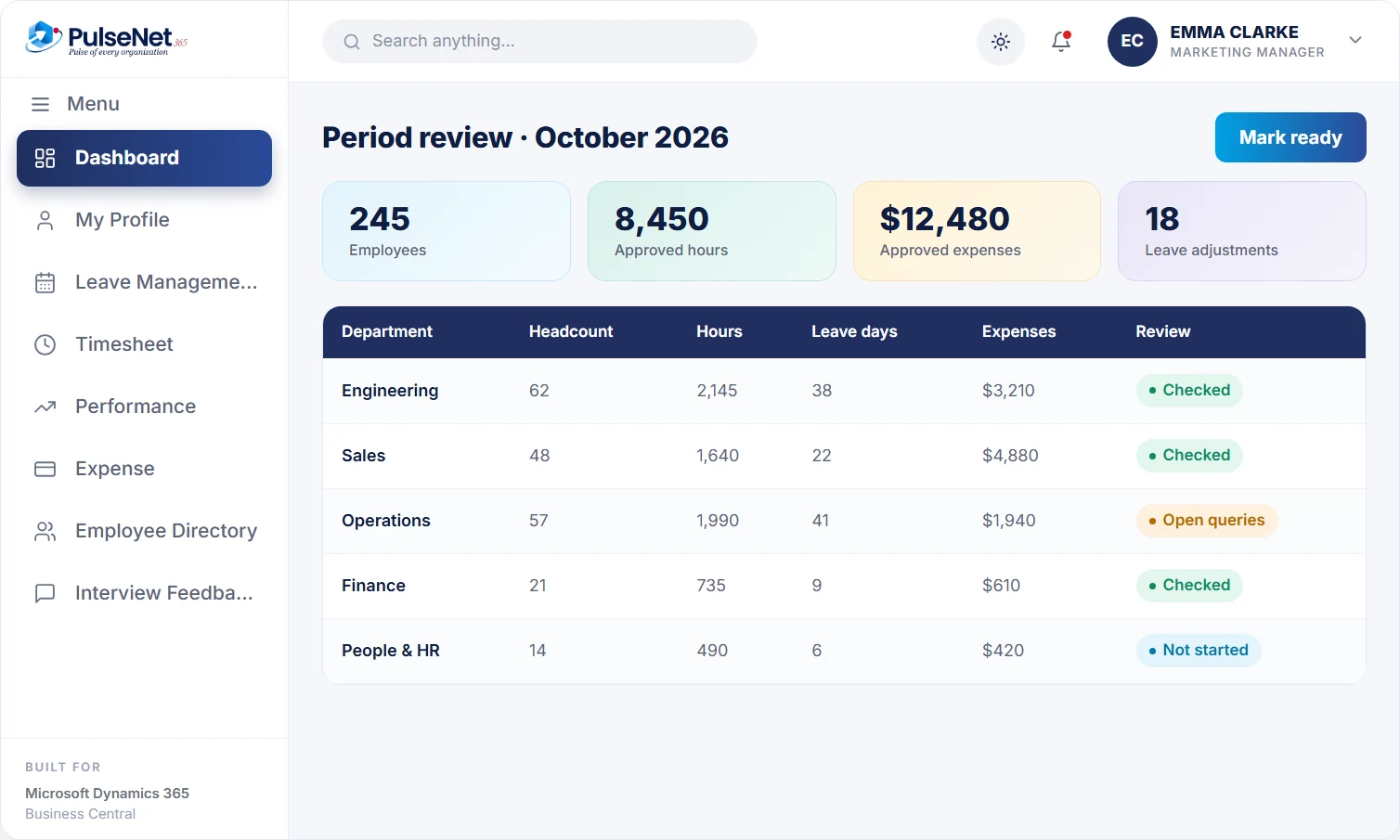
Payroll period review by department. Illustrative screen with sample data.
WHAT IT DOES
Built for the way compensation and payroll actually runs.
- Compensation and benefits on the employee record
- Approved hours, leave and expenses in one export
- Payroll integration with your existing provider
- Department-level review before each run
- PulseNet365 integrates with payroll. It does not replace your payroll engine.
01
Approve
Leave, hours and expenses are approved in PulseNet365.
02
Review
HR and finance check the period by department.
03
Export
Payroll-ready data goes to your provider.
04
Reconcile
Finance works from the same record on Business Central.
IN DETAIL
What the payroll handoff looks like each period
PulseNet365 owns the approved inputs. Your payroll provider owns the calculation, tax and filing. Finance sees both on Business Central.
Compensation on the employee record
Salary, benefits and compensation changes sit on the same employee record as leave, hours and expenses. When a pay rise is agreed, it is recorded once, with the date it takes effect, and visible only to the people whose role allows it, rather than living in a manager’s email until someone remembers to tell payroll.
Only approved data goes forward
Hours come from Time & Attendance, leave from Leave & Absence and claims from Travel & Expense, each approved by the right manager before it counts. Approved timesheet records lock, so a figure cannot change quietly after payroll has seen it. Timesheets still waiting for approval show as submitted, so HR can chase them well before the cut-off.
Department review before the export
Before each run, HR and finance review the period by department: approved hours, leave and expenses. Reviewing by department makes outliers easy to spot, such as a team with no overtime in a month everyone worked late, or a leaver still showing hours. Questions get resolved while there is still time to fix them before the run.
One export for your provider
Once reviewed, approved hours, leave and expenses go to your payroll provider as payroll-ready data. The provider then applies tax, deductions and benefits, produces payslips and files with the authorities, as it does today. After the run, finance reconciles the results against the same approved inputs, so a difference points to a genuine question rather than a copying error.
WHO IT HELPS
How HR, finance and payroll split the work
Employees
Paid on what was actually approved: hours submitted on time, leave recorded against their balance and claims reimbursed in the right period. When a figure looks wrong, the approved record shows exactly what went to payroll, so the question is settled in one conversation instead of three.
Managers
Approve hours, leave and expenses before the cut-off, because that is what payroll uses. Late approvals are a common cause of corrections, so reminders for overdue timesheets and a published cut-off date do more for payroll accuracy than any setting in the payroll system.
HR
Owns the facts: who is employed, on what compensation, from which date, with what approved time and leave. HR runs the department review before each export and chases anything pending, instead of rebuilding the period from exports at the end of the month.
Finance and payroll
Receive one approved set of inputs per period and reconcile the provider’s results against the same record on Business Central. Payroll specialists keep the calculation, tax tables and filings, the part that needs their expertise, while the inputs arrive already checked.
ON BUSINESS CENTRAL
Payroll integration on Business Central, not a payroll engine
Business Central holds the general ledger that payroll costs are posted to, the dimensions finance reports them by and the basic employee records. PulseNet365 adds the HR side that feeds payroll: compensation on the record, approvals for time, leave and expenses, a review by department and a payroll-ready export. Calculation, statutory deductions and filings stay with your payroll provider, which is where that expertise belongs.
Business Central provides
- General ledger where payroll costs are posted
- Dimensions for department, project and cost centre reporting
- Basic employee records with job title and contact details
PulseNet365 adds
+
Compensation and benefits held on the employee record
+
Approved hours, leave and expenses gathered for each period
+
Department-level review before every payroll run
+
Payroll-ready data for your existing provider
GOOD PRACTICE
Habits that keep payroll corrections rare
Publish the cut-off calendar
Set a cut-off for timesheets, leave and expenses a few working days before your payroll provider’s deadline, and publish the dates for the whole year in January. Managers plan approvals around a date they know, and exceptions become visible rather than routine.
Record pay changes with an effective date
Whenever compensation changes, record the new figure, the date it takes effect and who agreed it, on the day it is agreed. A change entered late creates back pay, which is harder to explain to the employee and to finance than getting it right first time.
Run the one-email test
Ask payroll whether next month could run using only what is in the HR system, with no email asking ‘is this right?’. Every question they would still need to ask points to a gap upstream, and that is where to spend effort before touching the payroll engine.
QUESTIONS
Compensation & Payroll questions, answered.
Does PulseNet365 calculate pay or file payroll taxes?
No. PulseNet365 prepares approved hours, leave and expenses, with compensation from the employee record, for your payroll provider. The provider calculates gross to net, applies tax and statutory deductions, produces payslips and files with the authorities. Keeping the two jobs separate means each is done by the people accountable for it.
Which payroll providers does it work with?
PulseNet365 integrates with the provider you already use, whether that is a bureau or in-house payroll software. Import requirements differ between providers, so we check yours during scoping rather than assume a format. Bring an example of what your provider accepts today to the demo and we will walk through the handoff.
How should we handle approvals that miss the cut-off?
Decide the rule before go-live and apply it every period. Most organisations pay late-approved hours in the following period as a clearly labelled adjustment, rather than reopening a run. Because approved timesheet records lock, what went to payroll cannot change afterwards, which keeps the adjustment easy to trace.
Who can see salary information?
Access is role-based. A common setup lets HR see the full record, payroll and finance see compensation and the inputs payroll needs, managers see what they need to manage without their team’s pay, and employees see their own details. The rules are set once by role, not file by file.
Is this a good module to start with?
Rarely on its own. The payroll handoff is only as good as the approvals feeding it, so most organisations start with Leave & Absence or Time & Attendance and add Compensation & Payroll once approvals run on time. Most start with two or three modules.
WORKS WITH
Connected modules.
Every module shares the same employee record on Business Central, so adding another one adds no integration work.
Time & Attendance
Track hours, shifts and overtime.
Leave & Absence
Instant balances, 1-click approvals.
Travel & Expense
Submit, approve and post to finance.
+
+
+
+
Thirty minutes is enough to know if this fits.
Bring your Business Central setup and the process that costs you the most time. We will show you Compensation & Payroll on the platform you already run.